Resources
Add the Chat Widget to Your Wix Site
This guide shows you how to embed the CatchWhen chat widget into your Wix site. You'll paste the embed code through Wix's custom code settings. No plugins required.
Copy your CatchWhen embed code
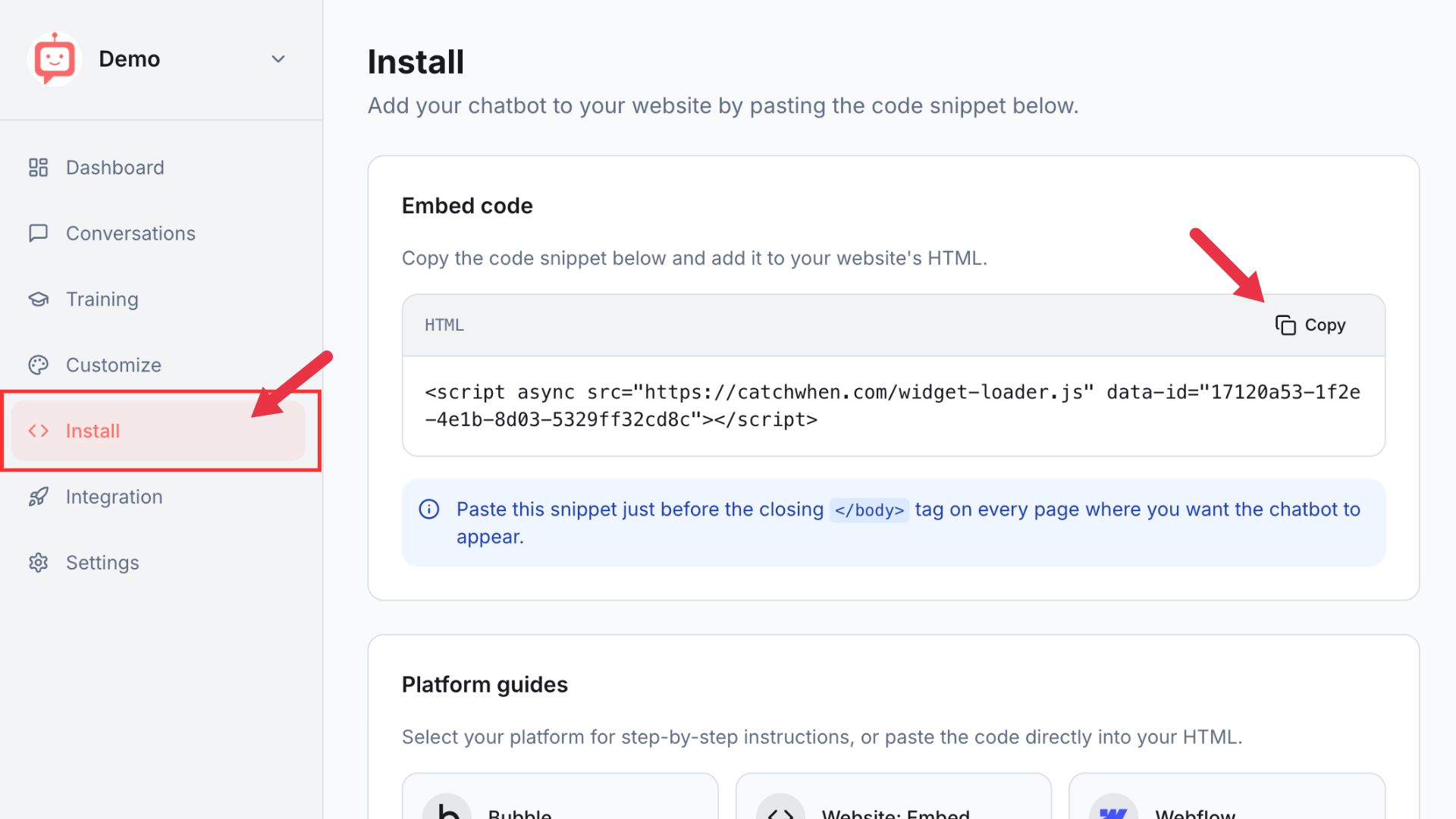
Navigate to your Dashboard page and click the Install tab in the left menu. You'll see a code snippet on the screen. Click the Copy button.
Go to Custom Code in Settings
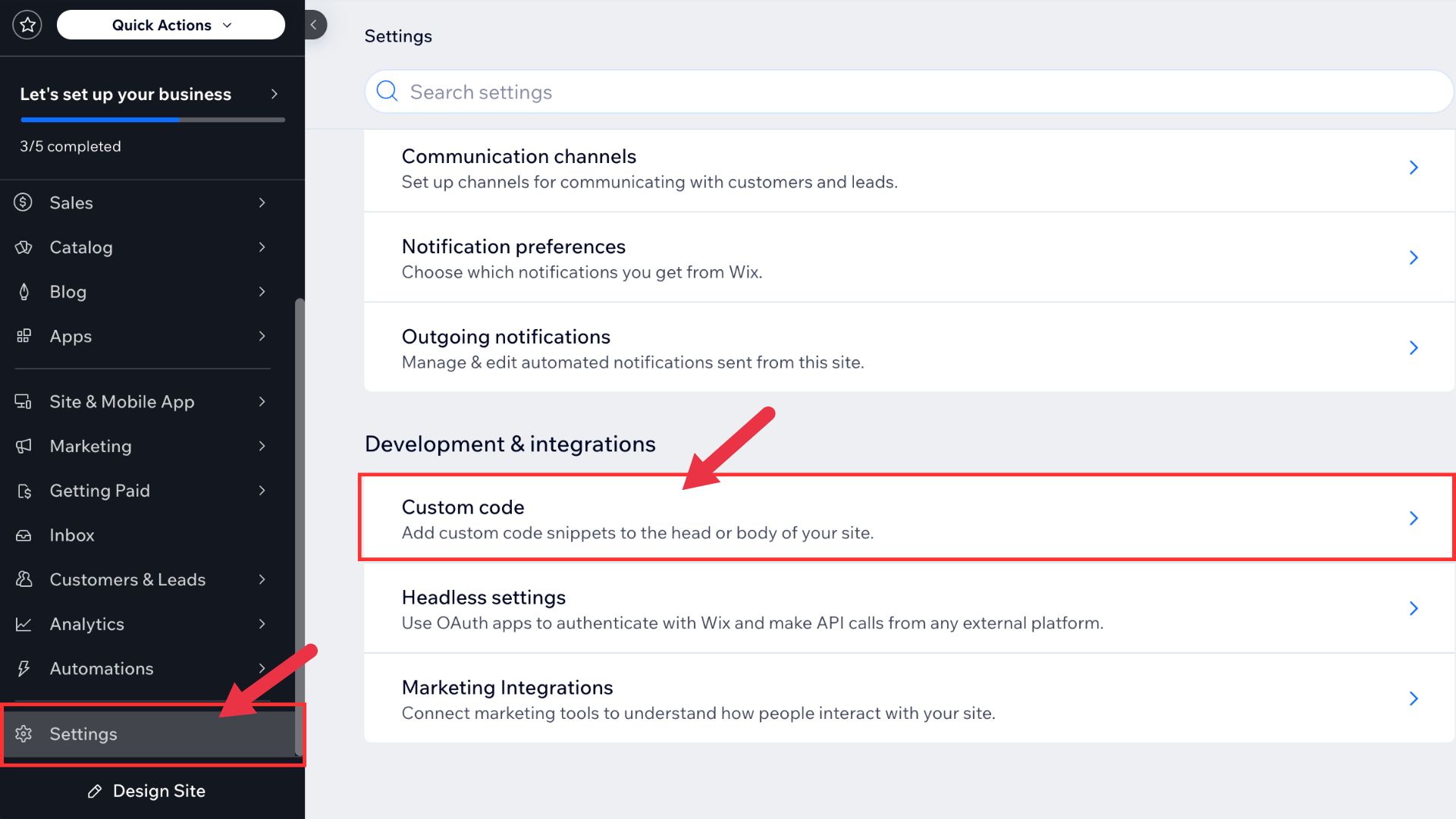
Sign in to your Wix website and head to your dashboard. Click Settings at the bottom of the left menu. Under the Development & Integrations section, click Custom Code.
Add code to Body - End
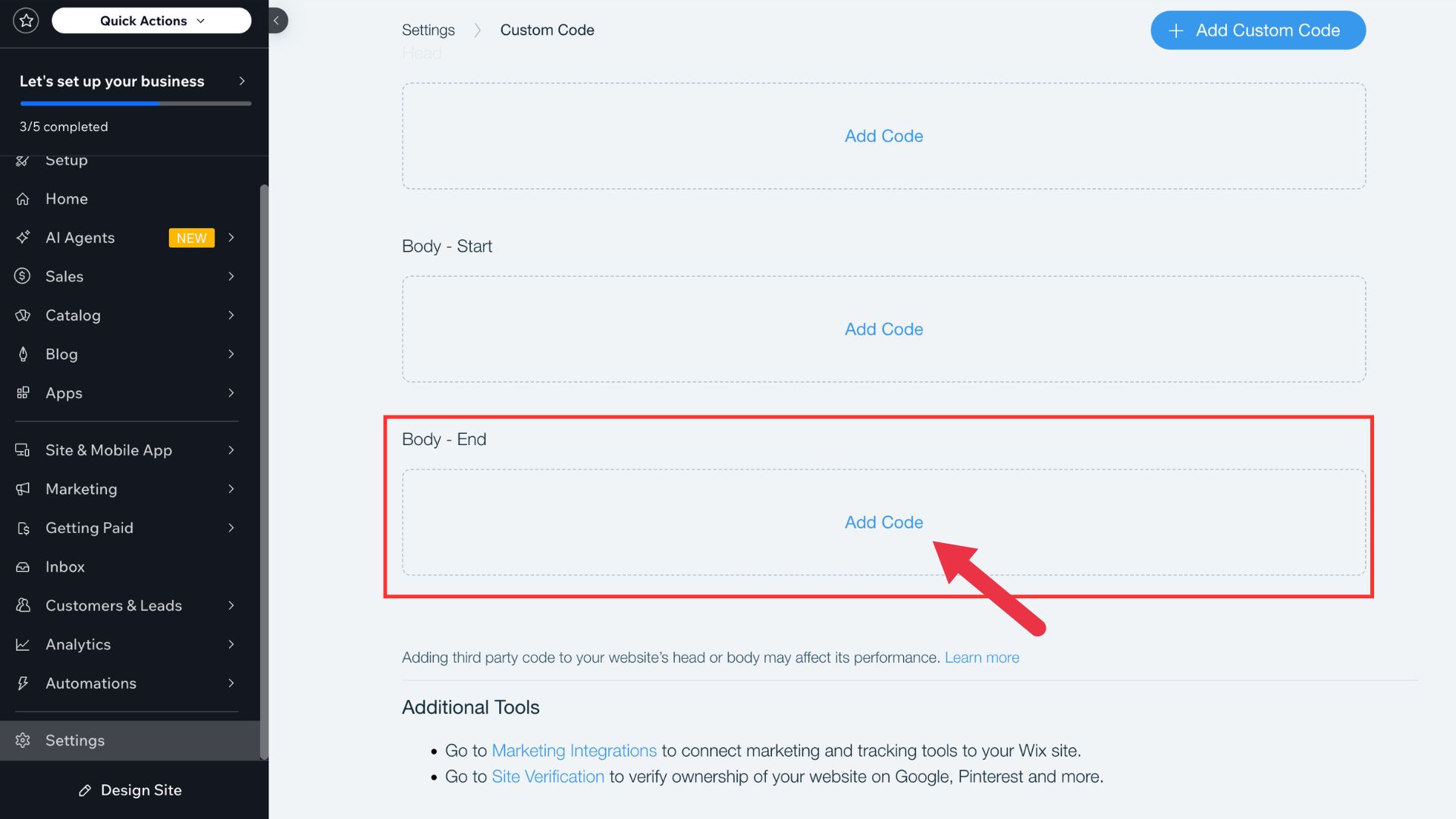
Find the Body - End section and click Add Code.
Paste your embed code
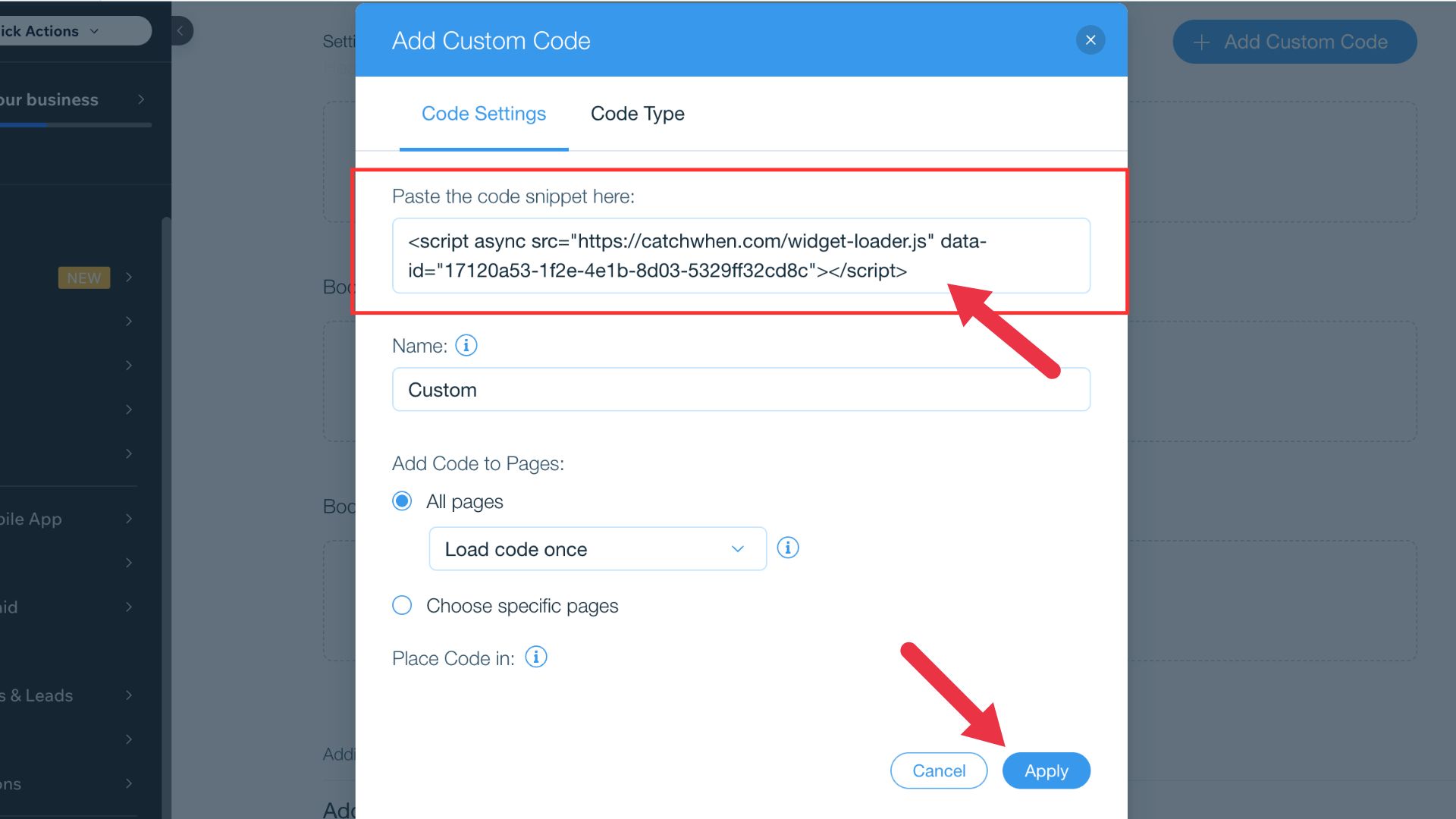
Paste your copied embed code into the code snippet field. Leave the other settings as they are and click Apply.
Publish your site
Go back to the left menu and click Design Site at the bottom to open the editor. Then click Publish in the top right corner. Once your site is live, the chat widget will appear in the bottom right corner of your website.
Customizing Your Website Agent
You can customize the appearance of your Website Agent on the CatchWhen dashboard. Click the tab in the left menu to reveal the appearance and chat interface options.