Resources
Add the Chat Widget to Your Shopify Store
This guide shows you how to embed the CatchWhen chat widget into your Shopify store. You'll paste the embed code directly into your theme's code editor. No apps or plugins required.
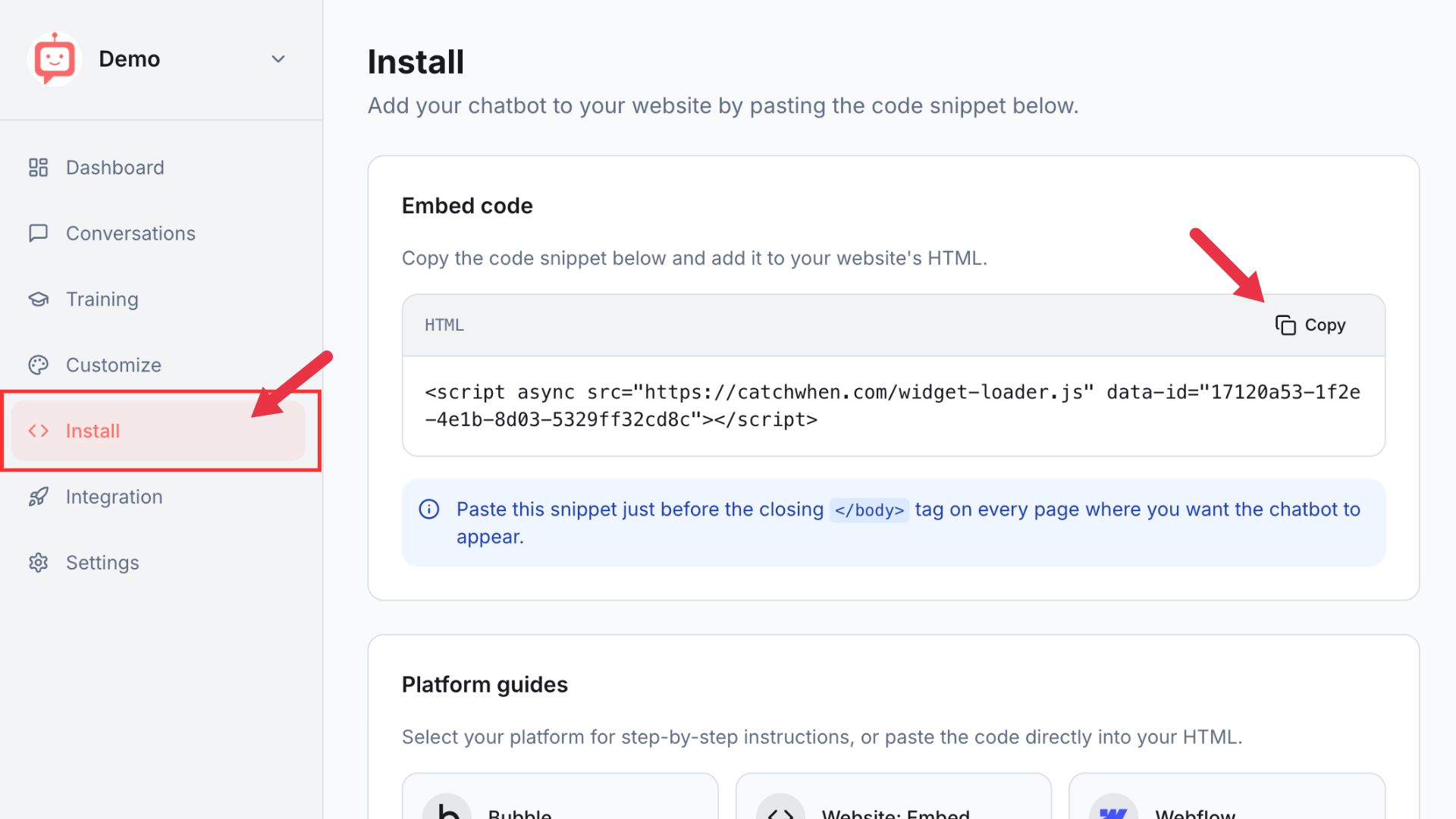
Copy your CatchWhen embed code
Navigate to your Dashboard page and click the Install tab in the left menu. You'll see a code snippet on the screen. Click the Copy button.
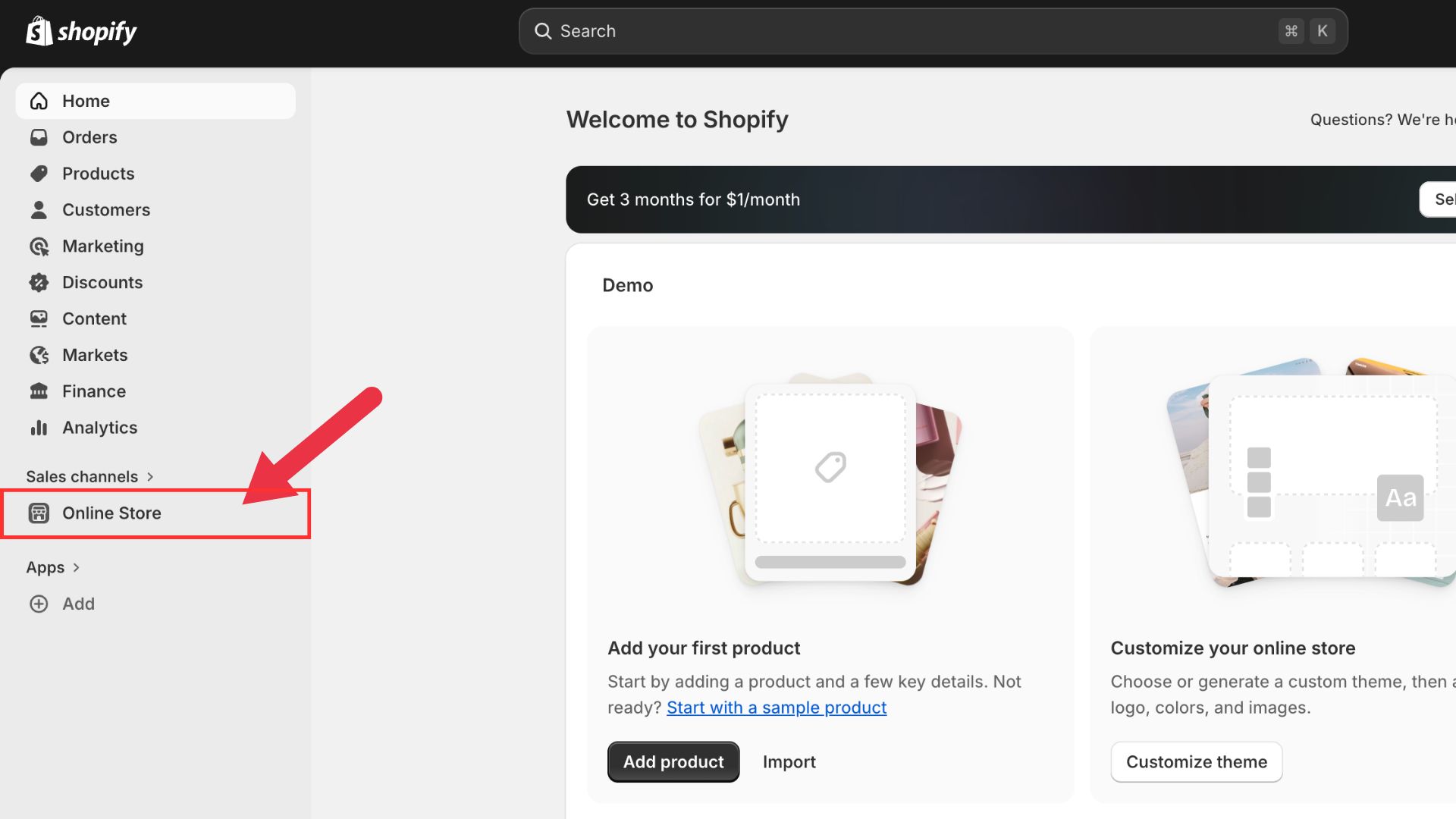
Go to Online Store
Log in to your Shopify admin dashboard. In the left sidebar menu, find Sales channels and click Online Store.
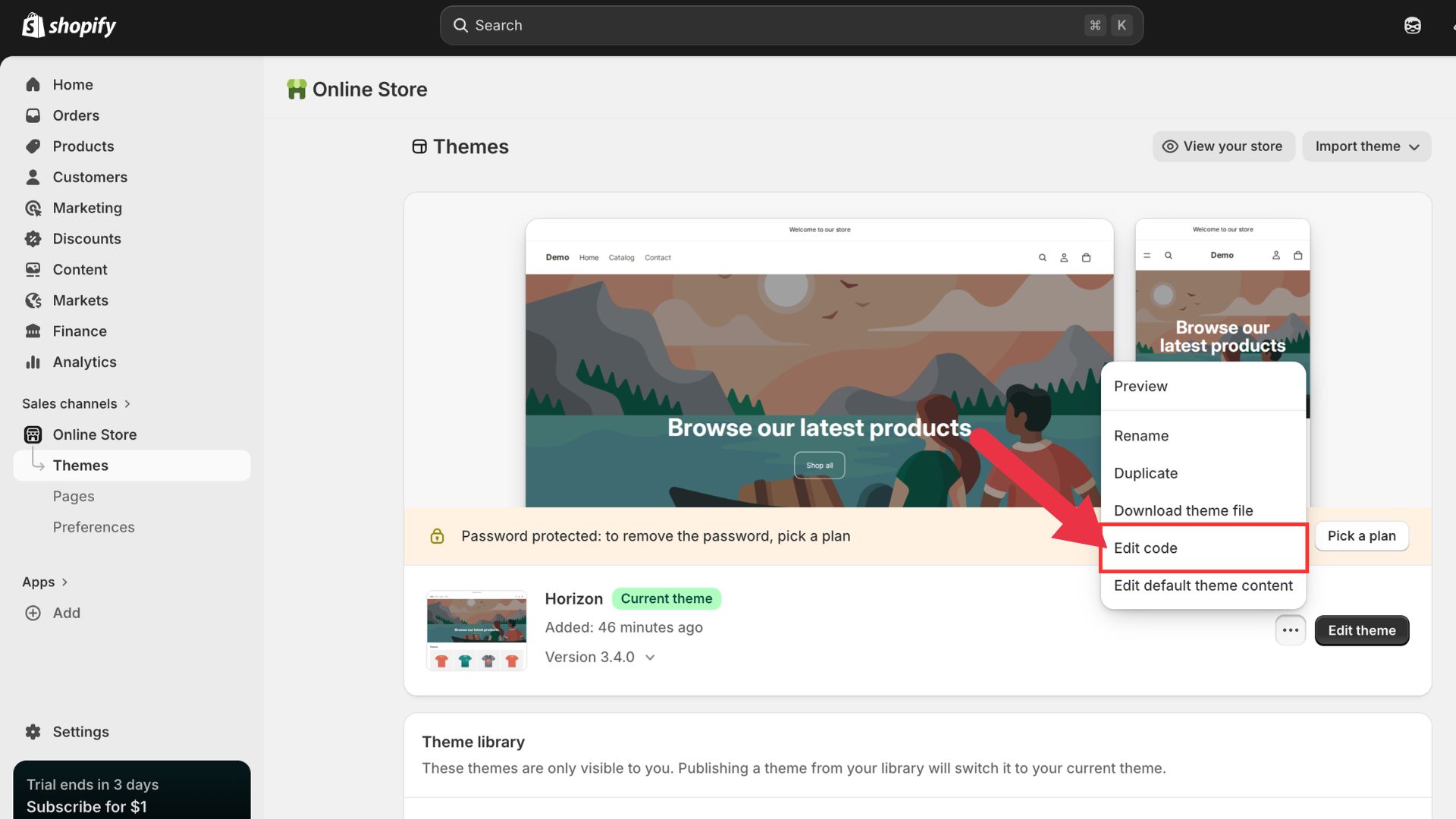
Edit your theme code
On the Themes page, click the ellipsis icon (···) next to your current theme and select Edit code from the dropdown menu.
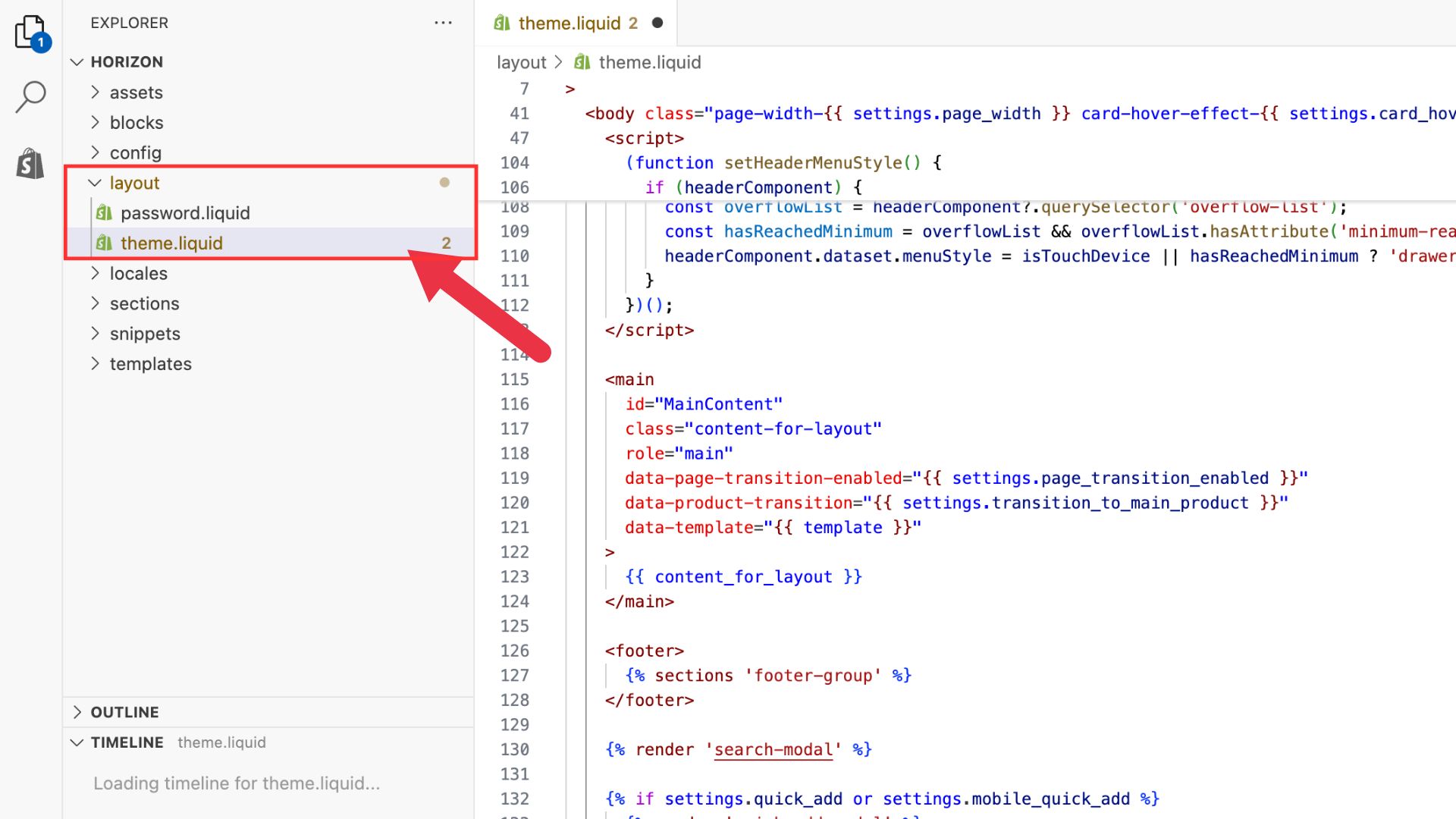
Open theme.liquid
In the file explorer on the left, open the Layout folder and click on theme.liquid to open the file.
Paste the code above the closing body tag
Scroll down in the file until you find the </body> tag. Paste your copied embed code on the line directly above it.
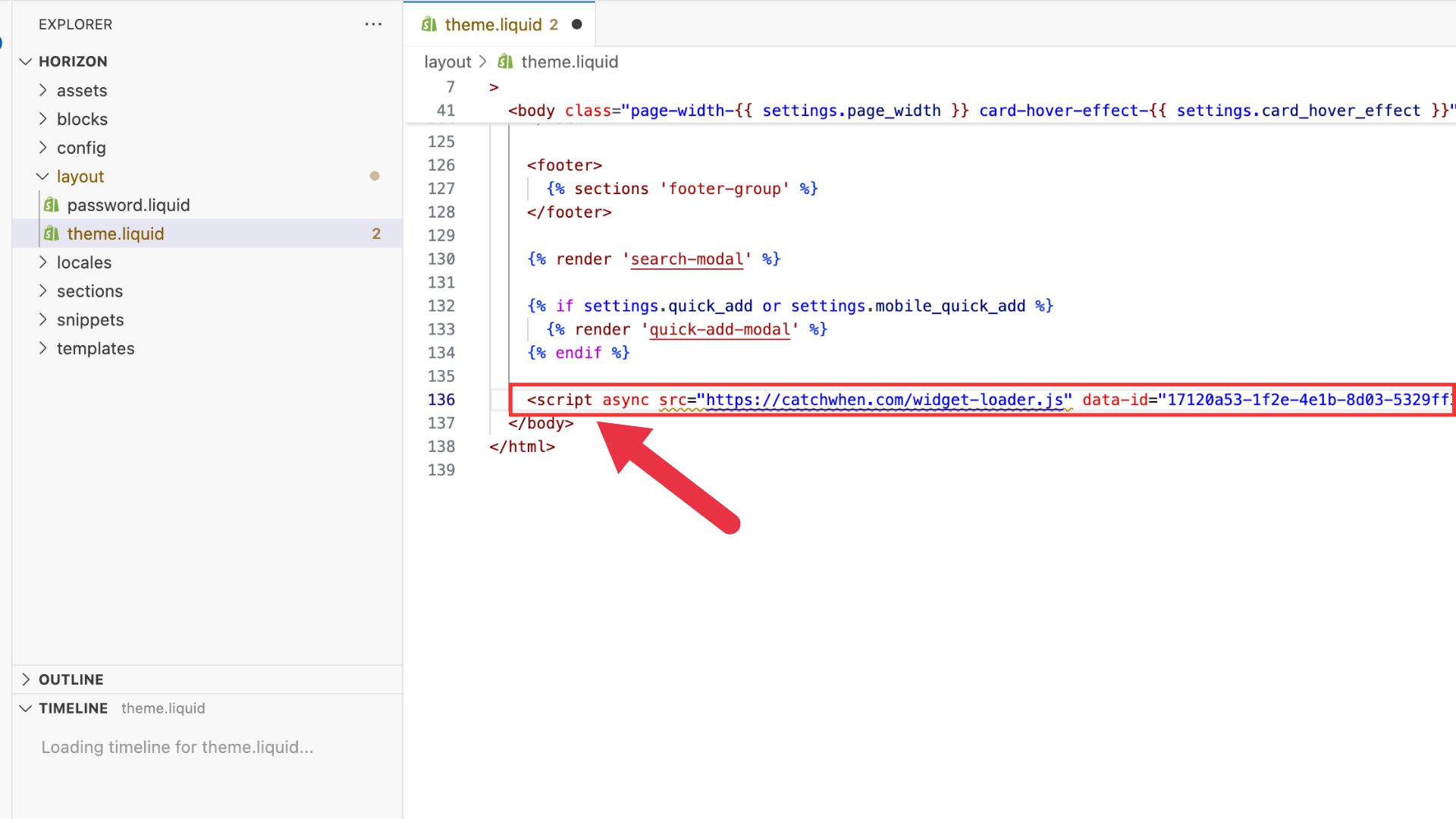
Save your changes
Click the Save button in the top right corner. The chat widget will now appear on your Shopify store.
Customizing Your Website Agent
You can customize the appearance of your Website Agent on the CatchWhen dashboard. Click the tab in the left menu to reveal the appearance and chat interface options.