How to Install a No-Code Website Chatbot for a Local Business
Learn how to install a no-code website chatbot for a local business, where to place it, what to test after install, and when to ask for help.
 Leo Lee10 min read
A no-code website chatbot should not require a website rebuild.
For most local businesses, the practical version is simple: create the chatbot, connect approved business information, copy the install code, paste it into the website builder or CMS, publish the site, and test the widget on desktop and mobile.
The part that gets missed is not usually the paste step. It is what happens around it:
- "Where do I paste the code?"
- "Will it show on every page?"
- "Will it block my booking button?"
- "What if I use Wix, WordPress, Webflow, Squarespace, or Shopify?"
- "How do I know it is working?"
- "What should I test before customers see it?"
This guide focuses on installation. If you need the broader readiness checklist before launch, use the website chatbot launch checklist.
Quick answer: the no-code website chatbot install path
The basic no-code website chatbot installation path looks like this:
- Create or configure the chatbot.
- Confirm the business information it can answer from.
- Add booking, quote, call, email, or contact links.
- Copy the chatbot embed code.
- Paste the code into your website builder, CMS, or custom code area.
- Publish the website.
- Open the live site on desktop and mobile.
- Ask realistic customer questions.
- Fix source, route, or display problems before treating it as launched.
That is the install flow. The goal is not just to make a chat bubble appear. The goal is to make sure the chat bubble helps a visitor reach the right next step.
The 15-minute no-code install flow
Use this as the fast version.
| Time | Step | What good looks like |
|---|---|---|
| 0-2 min | Open your chatbot install page. | You can see the embed or install code for your agent. |
| 2-4 min | Confirm the target website. | You know which site or domain the widget should appear on. |
| 4-6 min | Copy the embed code. | The full snippet is copied, not only part of it. |
| 6-10 min | Paste it into the website platform. | The code is placed in the site's custom code, embed, header/footer, or script area. |
| 10-12 min | Publish or save the site. | The live website receives the change, not just the editor preview. |
| 12-14 min | Open the live site. | The widget appears on desktop and mobile. |
| 14-15 min | Ask one real question. | The chatbot answers and routes to the right next step. |
That is the minimum install check. It does not replace a full launch test, but it tells you whether the widget is actually live.
If the install takes longer, the issue is usually one of three things: you do not have website admin access, the platform hides custom code behind plan settings, or the site is managed by a developer or agency.
What to prepare before pasting code
Do not start by hunting for the code box.
Before installing a no-code chatbot for a website, prepare these five things:
- Website admin access: You need permission to edit site code, embeds, apps, or integrations.
- The correct domain: Make sure you are editing the live business website, not an old staging site.
- Approved source content: Services, FAQs, policies, hours, location, pricing guidance, and contact paths.
- Next-step links: Booking, quote request, phone, email, contact, consultation, or service links.
- Human handoff rules: Questions the AI should not answer alone.
This matters because installation only makes the chatbot visible. It does not automatically make the answers useful.
A med spa chatbot still needs safe rules around treatment fit and consultation questions. A salon chatbot still needs guidance for new clients who do not know which service to book. A home service chatbot still needs a quote path instead of guessing an exact price from a short message.
Platform route map: where to install it
The exact path depends on your website platform.
Use this map to choose the right installation guide.
| Website setup | Best starting point | What usually happens |
|---|---|---|
| Custom HTML or developer-managed site | Website embed guide | Paste the snippet before the closing body tag or in the global site code area. |
| WordPress | WordPress install guide | Add the snippet through a plugin, theme code area, or site-wide script manager. |
| Wix | Wix install guide | Add the snippet through Wix's custom code area. |
| Webflow | Webflow install guide | Add the snippet in project or page custom code, then publish. |
| Squarespace | Squarespace install guide | Add the snippet through code injection or the relevant embed/code area. |
| Framer | Framer install guide | Add the snippet through custom code settings and publish. |
| Shopify | Shopify install guide | Add the snippet through theme code, app embed, or custom script path. |
If someone else manages your website, send them the install code and the platform guide. The business owner should still decide where the chatbot should appear and what it is allowed to answer.
Where should the chatbot appear?
For most local businesses, start with site-wide placement.
That usually means the widget appears across the website, not only on one landing page. Site-wide placement is useful because customers ask questions from service pages, pricing pages, contact pages, and booking pages.
But there are exceptions.
Start narrower if:
- the site has a sensitive medical, legal, or financial section
- you want to test the chatbot only on service pages first
- the booking page already has a separate live chat or support tool
- the widget blocks an important mobile button
- the business wants staff to review early conversations before expanding
The important rule is this: the chatbot should be available where visitors hesitate before taking action.
For a med spa, that may be treatment and pricing pages. For a salon, it may be service and booking pages. For a wellness clinic, it may be first-visit and insurance pages. For a quote-based business, it may be the service area and quote request pages.
The post-install smoke test
After the widget appears, do not stop.
Run this quick smoke test on the live site.
| Test | What to check |
|---|---|
| Desktop open/close | The widget opens, closes, and does not cover the main CTA. |
| Mobile open/close | The widget is easy to use on a phone and does not block booking or contact buttons. |
| Basic question | Ask about hours, location, or a common service. |
| Booking route | Ask how to book and confirm the link works. |
| Price question | Ask a pricing question and confirm it does not invent an exact quote. |
| Human handoff | Ask for a person and confirm the contact path is clear. |
| Risky question | Ask something the AI should not decide, such as eligibility or an exception. |
| Missing answer | Ask a question not covered by the website and confirm it does not make things up. |
If the chatbot passes these tests, it is ready for a broader launch review.
If it fails, mark the failure:
fix source: your website or FAQ does not explain the answer clearly enoughfix route: the correct booking, quote, call, email, or contact link is missinghuman-only: the chatbot should stop and route to staffdisplay issue: the widget appears in the wrong place or blocks something importanttool issue: the platform or embed is not loading correctly
For deeper QA, use the 50 AI chatbot test questions.
Common no-code install problems
Most install issues are simple, but they are easy to misread.
| Problem | Likely cause | What to try |
|---|---|---|
| The widget does not appear | Code was added to the editor but not published. | Publish the live site and refresh in an incognito window. |
| It appears on desktop but not mobile | Mobile layout, custom code scope, or caching issue. | Test the live mobile site and check platform-specific code settings. |
| It appears on the wrong page | Code was pasted on a single page instead of global site settings. | Move the snippet to a site-wide code area if appropriate. |
| It blocks a booking button | Widget placement conflicts with a sticky CTA. | Adjust widget placement or choose narrower page placement. |
| It answers badly after install | Install worked, but source content or routing is weak. | Fix the source content, routes, and handoff rules. |
| The site owner cannot find the code area | Platform permissions or plan settings may limit custom code. | Ask the website admin, agency, or platform guide. |
The key distinction: a working install and a useful chatbot are not the same thing.
If the bubble appears but gives weak answers, the install is probably fine. The setup needs work.
What not to automate just because installation is easy
No-code installation can make AI feel low-risk. That is only partly true.
The install step may be simple. The customer-facing behavior still needs limits.
Do not let the chatbot handle these alone:
- medical, legal, financial, or safety advice
- exact quotes without review
- treatment eligibility
- refund approval
- policy exceptions
- complaints from upset customers
- guaranteed outcomes
- appointment changes without live scheduling integration
- anything where the bot claims an action is complete when it only provided a link
This is why the setup before installation matters. A good no-code website chatbot should be easy to install, but careful about what it says.
Where CatchWhen fits
CatchWhen is built for local businesses that want a no-code starting point without turning the website into a software project.
The product starts as a Website Support Agent: a business-specific AI Support Agent for website inquiries. The install step gets the widget onto your site, but the real job is to answer from approved business content and route visitors to the booking, quote, call, email, or contact paths you already use.
That means you can think about CatchWhen in two layers:
- Setup: approved content, common questions, routing paths, and handoff rules.
- Installation: embed the widget on the website and test it on live pages.
If you only want the installation instructions, use the platform guides linked above. If you want the broader launch workflow, use the website chatbot launch checklist. If you are still deciding whether a chatbot is the right category, read the AI chatbot for small local businesses guide.
FAQ
Can I install a website chatbot without coding?
Yes, in many cases. Most no-code website chatbot installs use an embed snippet, custom code area, plugin, app embed, or website builder setting. You may still need admin access to the site.
Where do I paste chatbot embed code?
It depends on the platform. Many sites use a global custom code, footer, header, embed, app, or script area. Use the platform-specific guide for WordPress, Wix, Webflow, Squarespace, Framer, Shopify, or a standard website embed.
Should the chatbot appear on every page?
Usually, site-wide placement is the easiest starting point. Start narrower if the widget blocks important mobile buttons, the site has sensitive pages, or you want to test service pages before expanding.
What should I test after installing a no-code chatbot?
Test desktop and mobile display, open and close behavior, booking links, pricing questions, human handoff, risky questions, and missing-answer behavior. The chatbot should not invent information or promise actions it cannot perform.
Takeaway
No-code website chatbot installation is not complicated.
The important part is knowing what the install is supposed to do.
Paste the widget after you know the source content, routes, and handoff rules. Then test it on the live website like a customer would: ask about price, booking, service fit, contact, and human help. A no-code chatbot is useful only when the install leads to a better next step for the visitor.

Article by
Leo Lee
Leo Lee is the founder and builder of CatchWhen, a Customer Support AI System that creates AI Support Agents for appointment-based local businesses. CatchWhen helps med spas, salons, wellness clinics, and other independent service businesses answer customer-facing website inquiries and route ready leads into the booking, quote, or contact tools they already use. Leo writes about the workflows, guardrails, and infrastructure behind production-ready AI customer support agents.
Keep reading
AI Chatbot for Small Local Businesses: A Practical Website Guide
A practical guide to AI chatbots for small business websites: what they answer, where they fit, and how local owners route visitors to booking or quote links.
 Leo Lee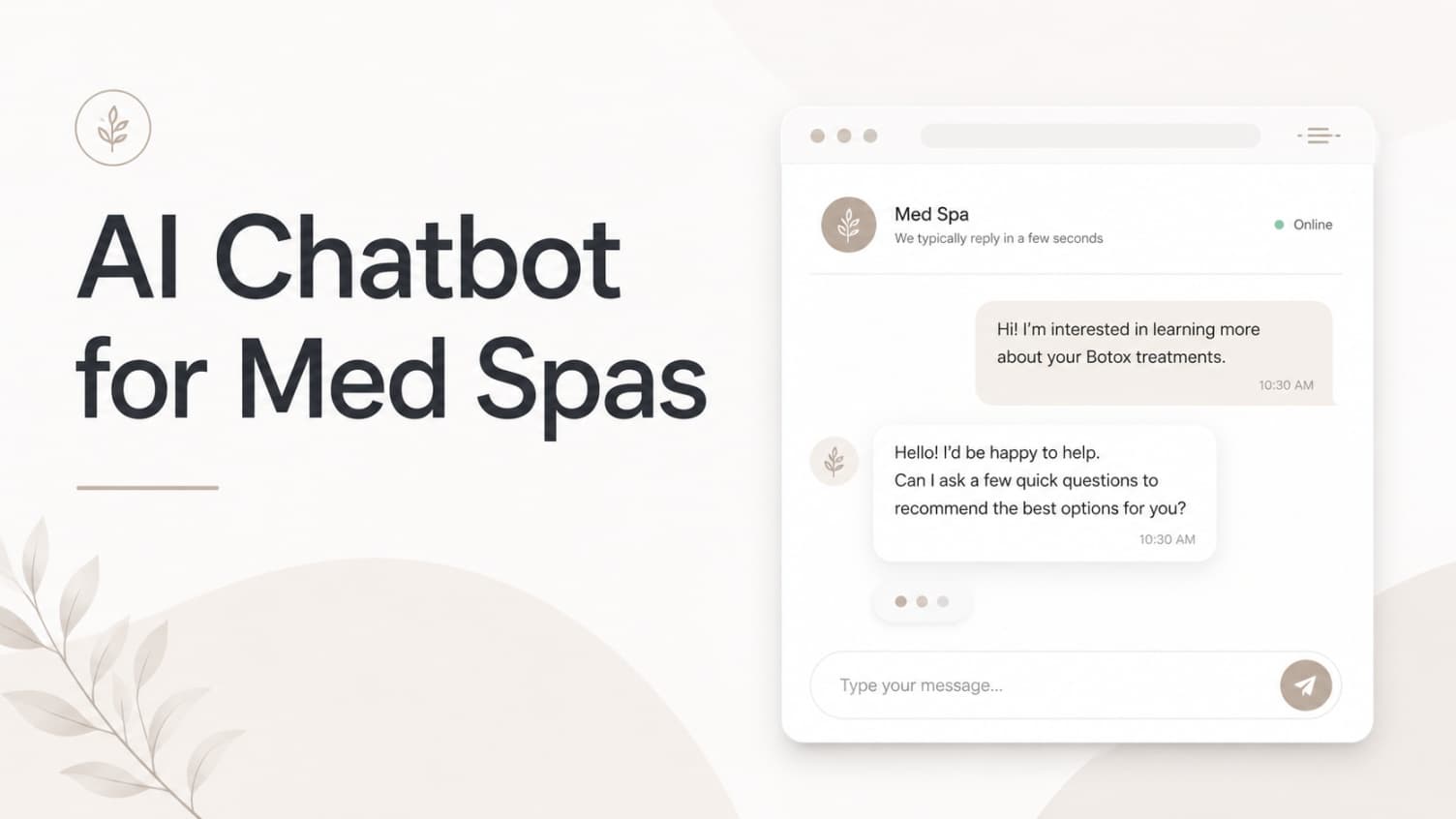
AI Chatbot for Med Spas: Route More Consult Requests from Your Website
A practical guide to med spa website chatbots: answer Botox, filler, laser, pricing, and consult questions, then route visitors to your existing booking path.
Leo Lee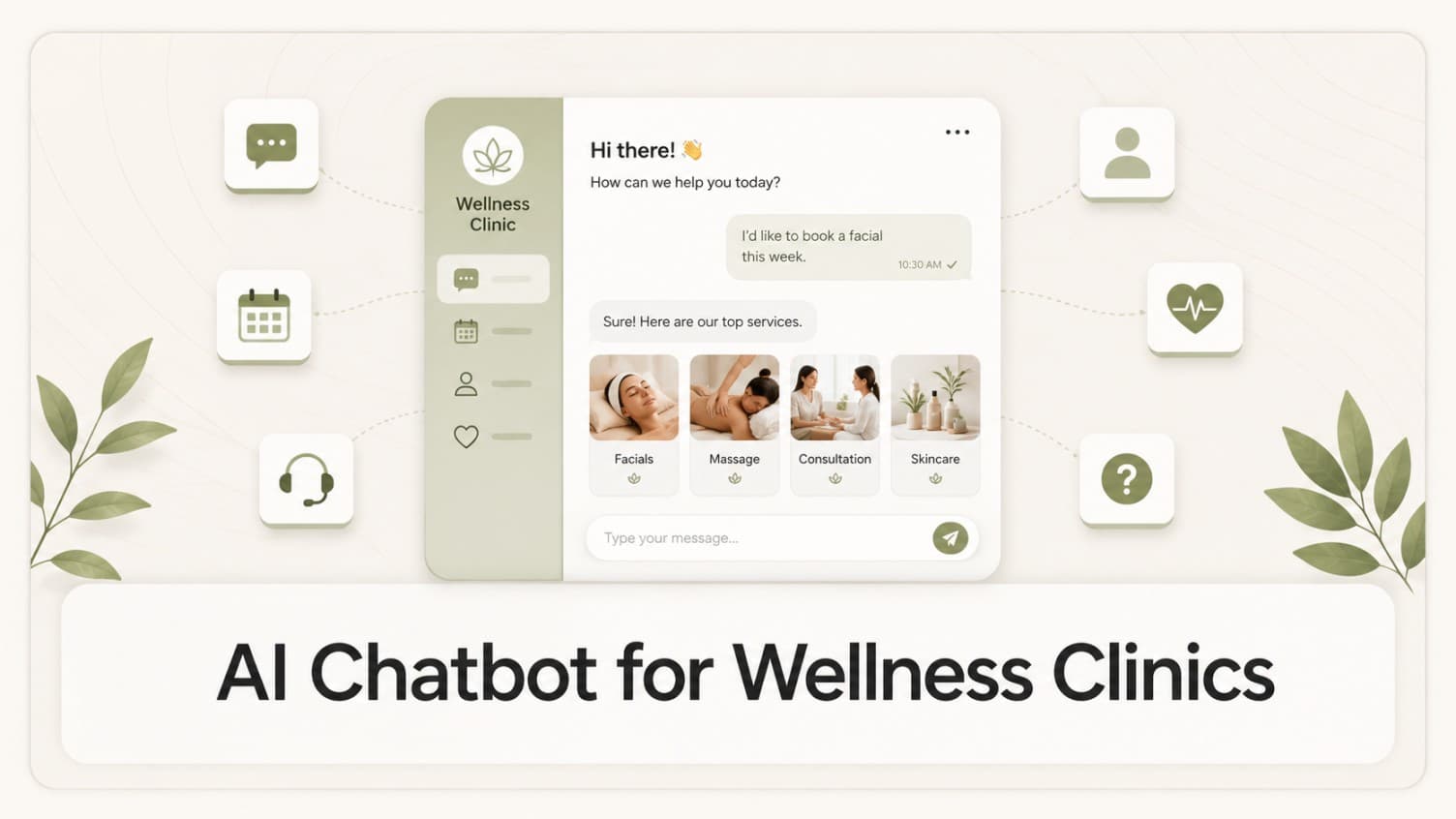
AI Chatbot for Wellness Clinics: Answer First-Visit Questions Faster
A practical guide to wellness clinic website chatbots: answer physio, chiro, massage, pilates, yoga, and IV drip first-visit questions, then route ready visitors to booking or intake.
Leo Lee